A recycle bin for deleted Jira issues.
Issue Recycle Bin keeps a continuous copy of your issues inside your own Atlassian site. When someone deletes one, a Jira administrator brings it back with its fields, comments, work logs, links and sub-tasks.
Paid via Atlassian · Free trial on the Marketplace · Jira administrators only
What comes back
Restore the whole issue, and know what stays lost.
The restore creates a new issue and copies everything the mirror holds. The list on the right is what no app on Jira Cloud can bring back, and we say so before you install.
Restored
- Fields as they were at the last change: summary, description, assignee, priority, labels, components and custom fields that exist on the create screen.
- Comments in their original order. The original author and date are written into the first line of each restored comment.
- Work logs with the original time spent and start date. The original author is named in the work log comment.
- Issue links to issues that still exist or have already been restored.
- Sub-tasks restored after their parent and attached to the new parent issue.
- A note on the new issue naming the original key, who deleted it and when.
Not restored
- The original issue key. Jira does not allow reusing a key, so the restored issue gets a new one. The bin keeps a “Restored as” link to it.
- Attachment files. Only file names, sizes and types are kept. The files themselves are gone with the issue.
- Issue history. The changelog is not mirrored. The restored issue starts a new history.
- Changes that never reached the mirror. Events usually arrive within seconds, but the platform allows up to about three minutes. An issue created and deleted inside that window may be missing.
How it works
Three steps, no servers of ours in between.
Install and run the initial load
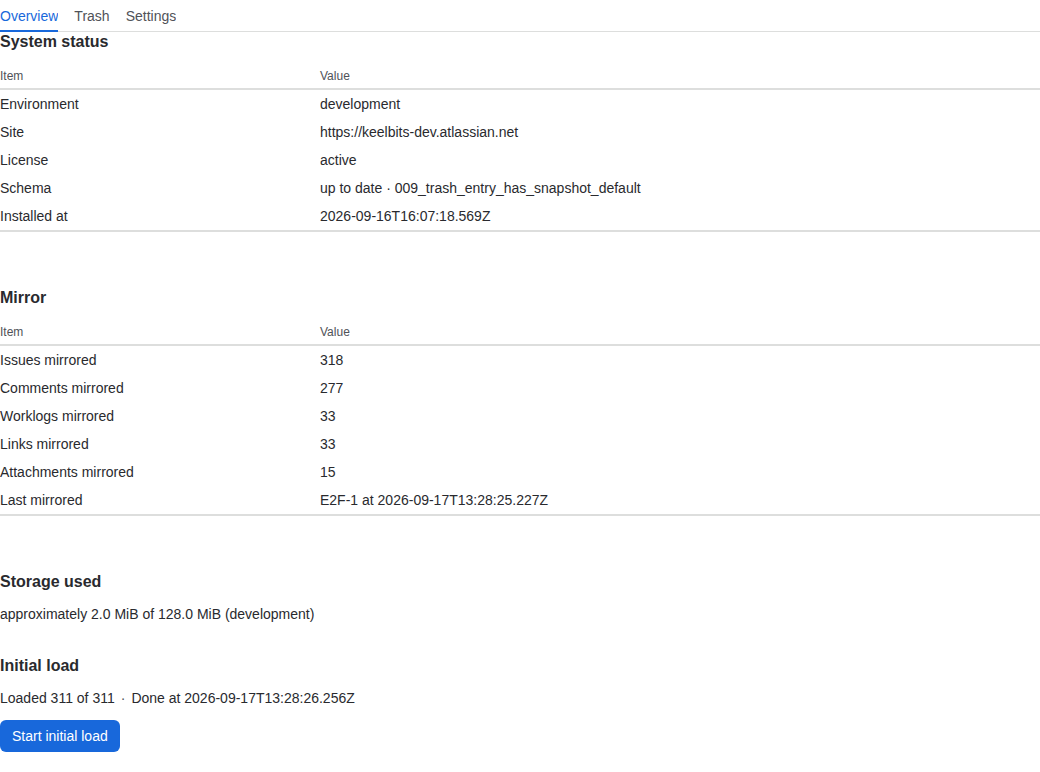
Install from the Marketplace, open Recycle Bin under Manage apps and press Start initial load. Existing issues, comments, work logs, links and attachment metadata are copied into the app’s storage. On our test site, 1,101 issues took about 8 minutes.
The mirror follows every change
Jira events keep the copy current: creates, edits, comments, work logs, links, attachments. The mirror needs an active subscription. Nothing is saved while it is inactive, and the app tells you to run the initial load again after a renewal.
Restore from the Trash tab
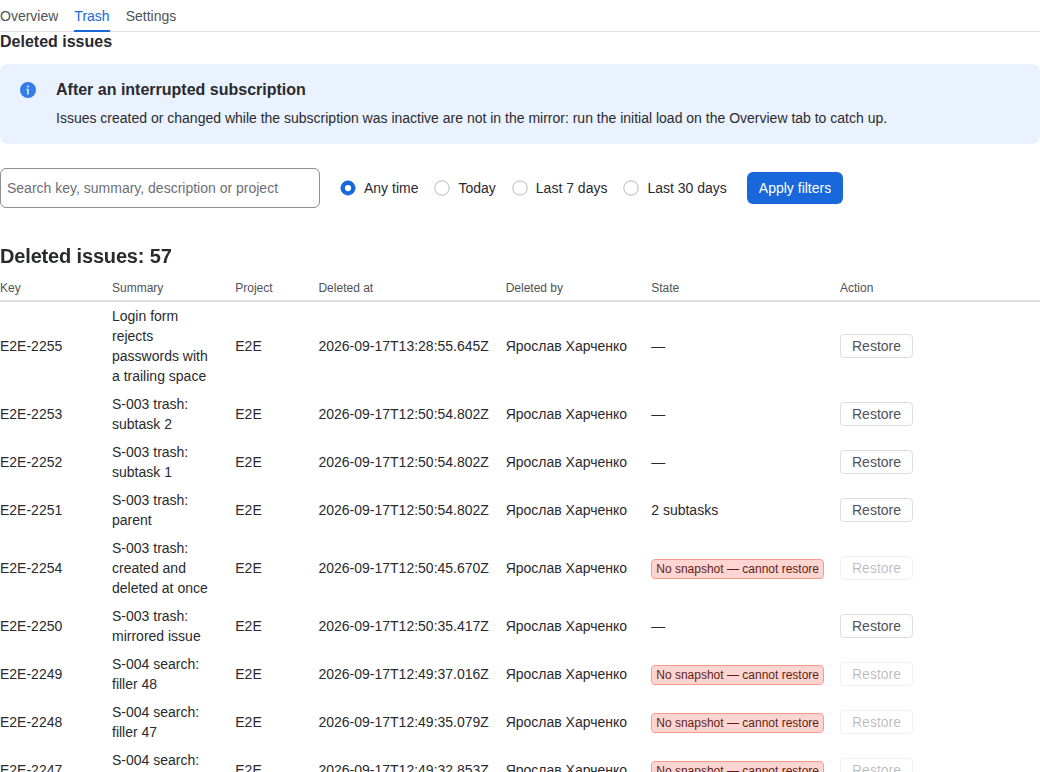
Deleted issues appear in the Trash tab with who deleted them and when. Search by key, summary, description or project, press Restore, confirm. The row then reads “Restored as KEY-123” and links to the new issue.
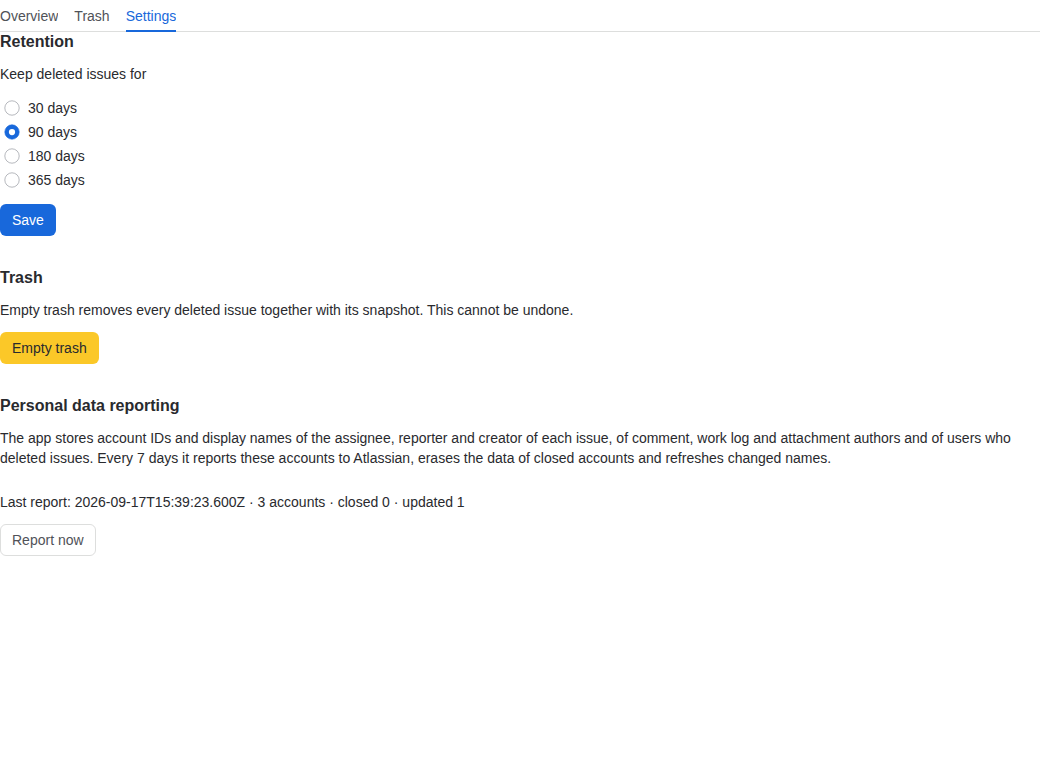
The other two tabs
Security
Your data stays in your site.
Copies of issues are kept in Forge storage that belongs to your Atlassian installation. Keelbits runs no servers, receives no issue data and cannot look into your bin.
Security details- Storage
- Forge SQL and key-value storage of your installation. Each installation has its own schema.
- Egress
- None. The app requests no external network permissions.
- Access
- Jira site administrators only. Every operation checks the caller’s permission before the app acts.
- Retention
- 30, 90, 180 or 365 days, 90 by default. Uninstalling the app removes its storage.