Restoring issues
Deleted issues appear in the Trash tab. A Jira administrator finds one, presses Restore, and gets a new issue with the fields, comments, work logs, links and sub-tasks the mirror held.
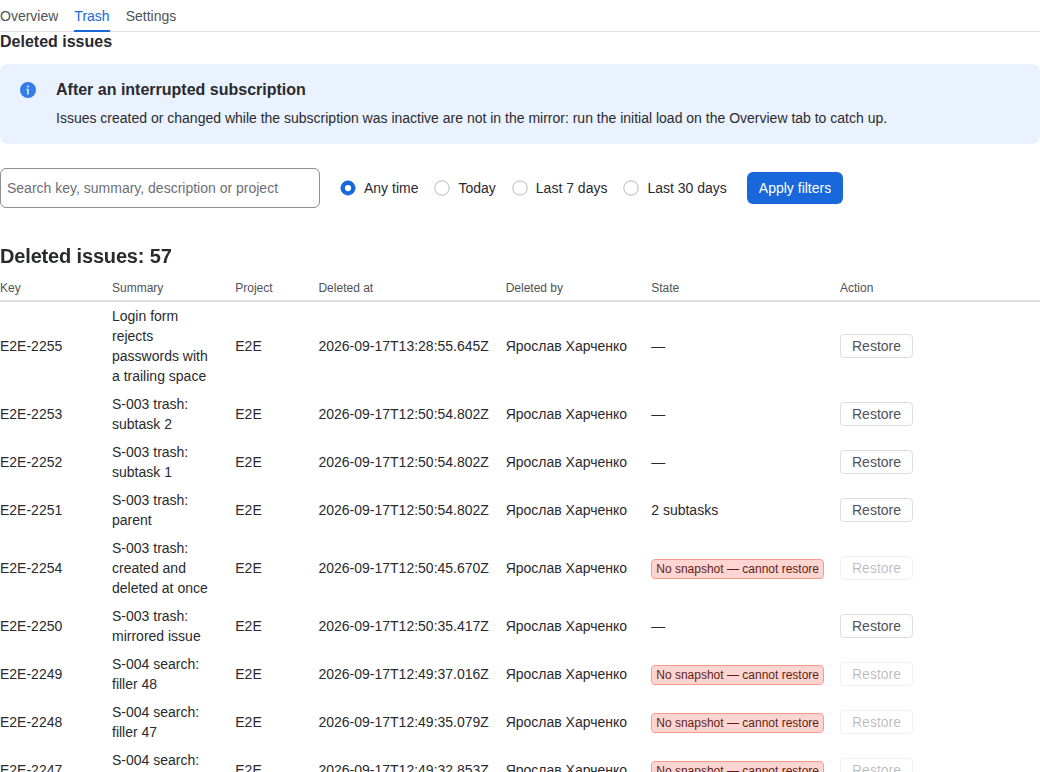
Find the issue in the Trash tab
The Trash tab lists deleted issues with their key, summary, project, who deleted them and when. Search by key, summary, description or project key; the search ignores case. An entry stays in the trash for the retention period, or until you empty the trash.
Restore step by step
- Press Restore in the row of the issue. The row shows Confirm restore and Cancel; nothing happens yet.
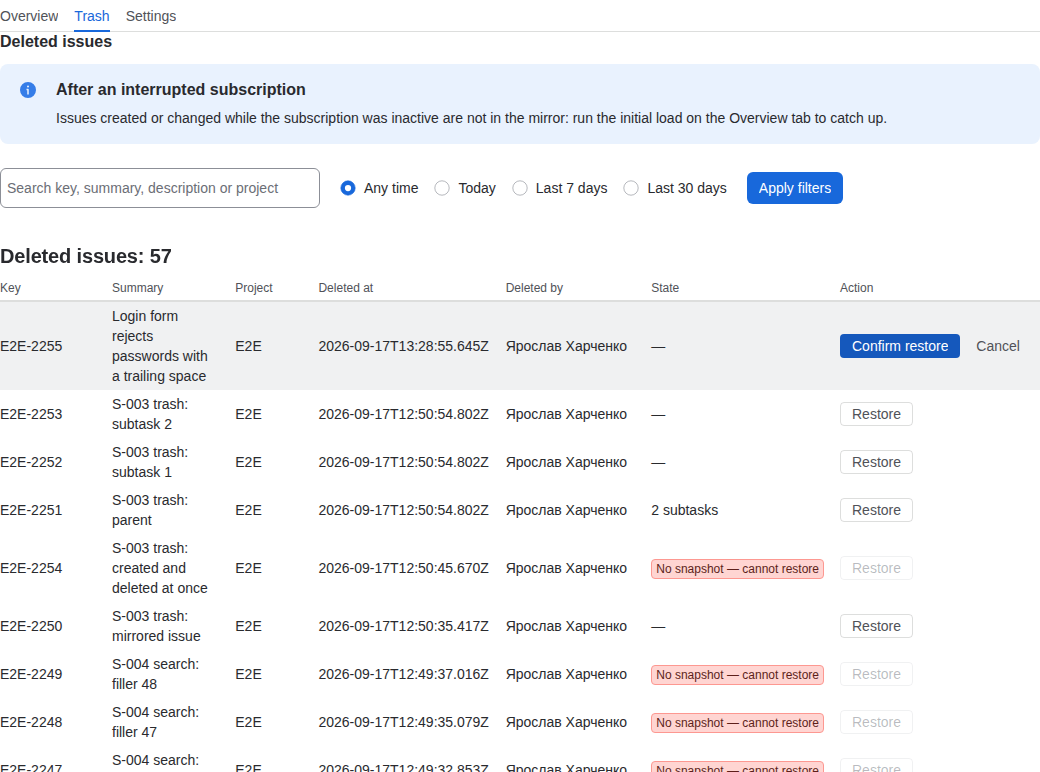
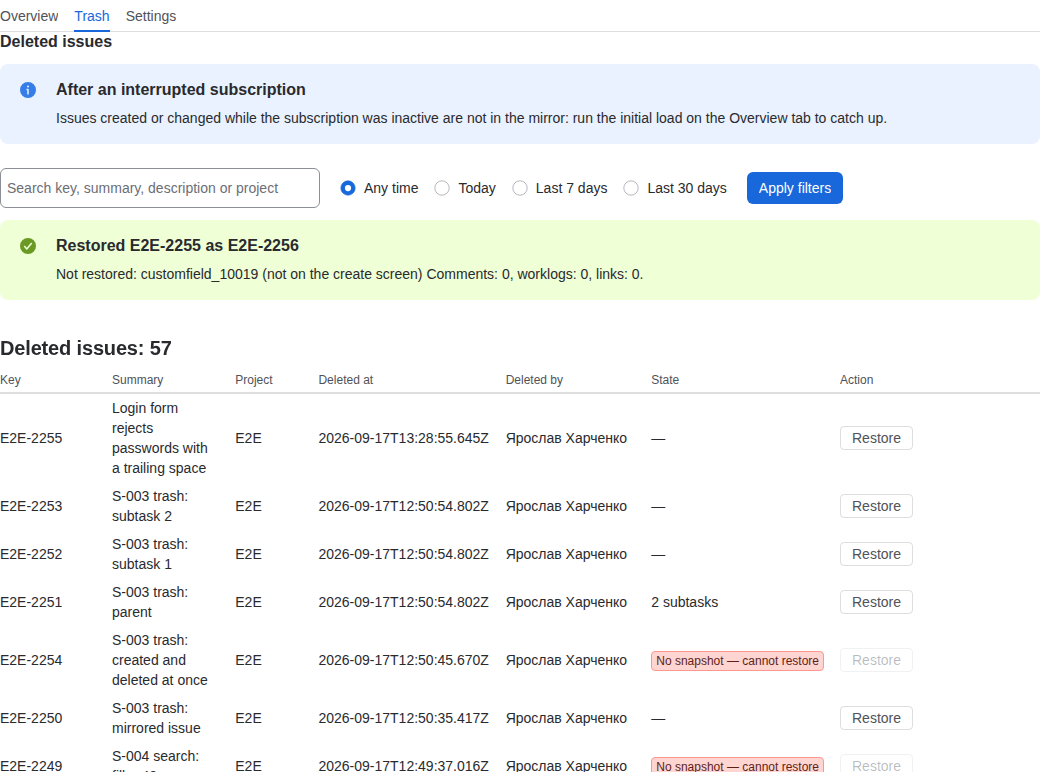
- Press Confirm restore. The app creates the new issue, then copies comments, work logs, links and sub-tasks. A green panel reads "Restored OLD-KEY as NEW-KEY" and lists what was skipped; the row now reads "Restored as NEW-KEY" and links to the new issue.
What a restore copies
- Fields as they were at the last change before the deletion: summary, description, assignee, reporter, priority, labels, components, versions, due date and the custom fields that exist on the project's create screen. A value that no longer exists, such as a deleted component, is skipped and listed in the result.
- Comments in their original order. The original author and date are written as the first line of each restored comment ("Originally posted by
on "): Jira does not let an app set them. - Work logs with the original time spent and start date. The original author is named in the work log comment.
- Issue links to issues that still exist or have already been restored. A link to an issue that is still deleted is skipped and named in the result.
- Sub-tasks after the parent, attached to the new parent key.
- Attachment metadata — file name, size, author and date — as paragraphs at the end of the description. The files themselves are not restored.
A comment on the new issue names the original key, who deleted it and when: "Restored by Issue Recycle Bin from OLD-KEY, deleted by
After the restore
Jira Cloud does not allow an app to create an issue with a chosen key, so the restored issue gets a new key. The Trash row reads "Restored as NEW-KEY" and links to the new issue; the result lists everything that was skipped. After a fully successful restore the app deletes its copy of the deleted issue, and the new issue is mirrored like any other. If some steps failed, the copy is kept until the retention period ends, and you can restore again.
Sub-tasks and parents
A sub-task is restored under its parent, so the parent must exist or be restored first: for a sub-task whose parent is still deleted the app answers "Restore the parent issue first". Restoring a deleted parent restores its sub-tasks after it.
Who can restore
The Trash tab is available to Jira site administrators only. Every restore checks the caller's administrator permission on the server before the app acts with its own identity.
Last updated 2026-09-17 · Questions: support@keelbits.com